

How to download the JL7 app on Android and iPhone

The JL7 app comes as an APK on Android and a Lite-App on iPhone, and neither one is listed on Google Play or the App Store. That changes how the install works: Android needs two Download taps and an Install, while an iPhone downloads a profile in the browser and finishes in Settings. The ₱188 on the Download bar also comes with two conditions that the label does not show.
Android takes an APK, iPhone takes a Lite-App, a computer shows QR codes
Android takes an APK from the website, iPhone takes a Lite-App through Settings, and a computer shows QR codes for either phone. An APK is Android’s install file, and a Lite-App is the iOS version. The table sorts the routes by device, because the device decides whether you install a file or approve a profile.
| Device | Install route | Store listing | Watch for |
|---|---|---|---|
| Android phone | Download the APK from the website, then tap Install | Not on Google Play | An older copy updates in place and keeps your data |
| iPhone | Install the Lite-App by approving a profile in Settings | Not on the App Store | The install is unfinished until you approve the profile in Settings |
| Computer | The APP Download page shows an iOS QR code, an Android QR code and a Click to download button | Not applicable | Scan the code with the phone that should get the app from JL7 |
From a computer, the route is a hand-off. The APP Download page lists one QR code for iOS and one for Android, so you scan the code that matches the phone you want the JL7 app on.
On the iPhone row, a configuration profile is a file that tells iOS to add settings or shortcuts. Apple describes a Web Clip as a shortcut to a web page that such a profile places on the home screen, so the app from JL7 lands as an icon with no store download behind the icon.
So the phone in your hand picks the row, and the computer row only passes the install on to that phone.

The ₱188 Download bar, where both phone installs start
Both phone rows start from the same place: the Download bar on the website carries the label Download get ₱188, and the Download button on that bar starts the JL7 app download. Neither route has a store page that names the publisher, so the browser address is your only check; continue only when the address reads jl77.com.ph.
That ₱188 is the App Download Bonus, which arrives as a cash voucher once both conditions below are met:
- Cumulative deposits of ₱1,000, meaning all your deposits added together
- Cumulative valid bets of ₱15,000, meaning the wagers that count toward the total
Because the label sits on the download button while the voucher follows those two conditions, treat the install and the voucher as separate steps: the install comes first, and your deposits and valid bets decide when the voucher arrives.
Download and install the JL7 app on Android, new or over an older copy
Once the address checks out, Android needs Download on the bar, Download once more, and Install to finish. Because the file for the app from JL7 does not come through Google Play, Android treats the download as an app from outside the store, and that shapes step 3.
- Open the website on your phone and tap Download on the bar. The phone starts fetching the JL7 APK.
- Tap Download once more, and the file downloads to the phone.
- Tap Install on the screen that follows. If the app from JL7 is already on the phone, Install updates the existing copy and keeps your data, so you do not uninstall first.
- Open the app from the home screen. The bar along the bottom with Member, Promotion, Home, Deposit and Invite tells you the install worked.
If the phone refuses to open the file in step 3, switch on the permission to install apps from outside Google Play for the app you downloaded with, usually your browser. Android usually shows that setting in the prompt that blocks the file, and Android 8 and later grant the permission app by app, so you change one app only.
After the install, you can switch the permission off again in the same settings screen, so the exception lasts only as long as the install needs.
iPhone installs take two stages, and the second one runs in Settings
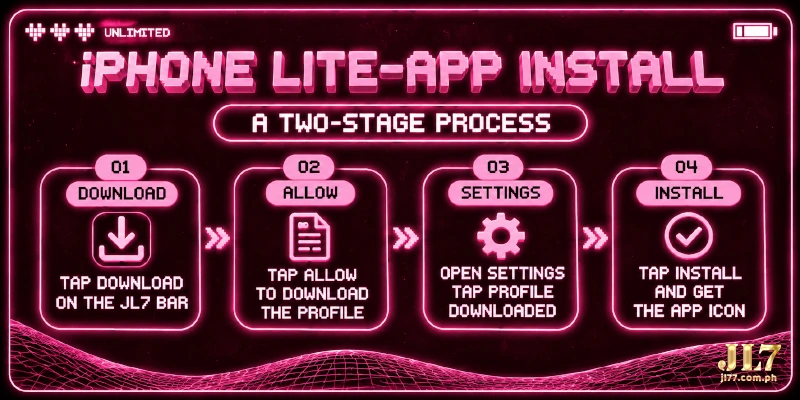
An iPhone splits the install in two: the browser only downloads the profile for the app from JL7, and Settings finishes the install. That is why the JL7 iOS Lite-App never appears in the App Store: iOS adds the Lite-App from the profile you approve, not from a store listing.
- Tap Download on the bar.
- Tap INSTALL IOS LITE-APP.
- Tap Allow when the phone asks to download the profile. The profile is on the phone now, but nothing is installed yet.
- Open Settings and tap Profile Downloaded.
- Tap Install Profile.
- Tap Install. The Lite-App icon appears on your home screen.
Allow only downloads the profile, so leaving after step 3 leaves no icon on the home screen, and the Lite-App exists only after Install in Settings.
FAQ
Once the app is on your phone, the steps above end, so these questions pick up what sits around the install, not inside the steps.
Do I need a new account for the JL7 app?
No. The app from JL7 uses the same account as the website, so your existing username and password sign you in on the phone and on the computer alike.
Do I have to install the app from JL7 to play on a phone?
No. The website also works in a phone browser, which shows an Add to Home Screen prompt if you want a shortcut. The browser needs no install, so the browser suits a phone where you do not want to add an app.
Someone sent me the app file on Telegram. Should I install that file?
Install only what the Download bar gives you. @JL7_COM is the only official Telegram, so an app file from any other Telegram account is not an official file, and you can delete that file unopened.
One account behind the JL7 app, two install routes
Your phone picks the route, an APK on Android or a Lite-App on iPhone, and with no store between you and the file, the Download bar on the website is where either route begins. Either way, the app from JL7 only changes how you reach the account you already use.


